Showing posts with label Tutorial. Show all posts

How To Change And Hower The Colour Of Post Title In Blogger

change and hover the blog post title color

How To Change And Hower The Colour Of Post Title In 

Blogger


Hello all out there,

We learned previously about changing the fonts of Post title and later about customization about Blogger Template and Layout. One of our newbie Blogger friends asked me about changing the Post Title Color.

He said that he followed our post in which we have shown the process about customizing the template, but unable to find the option for solving his query.

Well, the answer is new Blogger Template Designer has no option for changing the color of Blog posts title, it is required to be added some CSS Codes in the template to make it possible.

Finally he got his query solved but what about others who have the same question!! Thence, we have decided to publish the method here for rectifying it within five minutes.

So dear friends, do you want to get it for Your Blog posts title too? Come let's find the output of this tutorial first.

Output of this Tutorial

  • Link colorYou can change the post title color if it is in the link form.
  • Hover ColorYou can bring hover effect with this, whenever people will move the mouse to the blog post title it will get changed.
  • Post Color; if your blog post title is not in link form, it can be used instead.

========================================================================
"This tutorial is recommended for those bloggers who have been using the Blogger default template for their blog. If they are using the third Party Template they may find the difficulty as they have predefined definitions for color codes".
=========================================================================
So, here we go..

Tutorial:

First take a backup of your blog template

1. Go to Blogger Dashboard > Template > Edit HTML

2. Find the "Variable definitions" by pressing CTRL+F

3. Copy the following code and paste just below it, as shown in the picture
<Group description="Post Title Color" selector="h3.post-title">
<Variable name="post.title.link.color" description="Link Color" type="color" default="#ff0000" value="#ff0000"/>
<Variable name="post.title.hover.color" description="Link Hover Color" type="color" default="#0000ff" value="#00ffff"/>
<Variable name="post.title.color" description="Color on Post Page" type="color" default="#ff00ff" value="#ff00ff"/>
</Group>
How To Change And Hower The Colour Of Post Title In Blogger

4. Search for ]]></b:skin>

5. Copy below code and paste just above it as directed in the picture
h3.post-title { color:$(post.title.color); }
h3.post-title a, h3.post-title a:visited { color:$(post.title.link.color); }
h3.post-title a:hover { color:$(post.title.hover.color); }

6. Click on Save Template 

7. Go to Blogger dashboard > Template > Customize

How To Change And Hower The Colour Of Post Title In Blogger

8. Click on Advanced > Post Title Colour

How To Change And Hower The Colour Of Post Title In Blogger

9. Now, pick any color for the post title and hover effect from the given options

Note: you can see the demo just below the “Blogger Template Designer” where your blog appears for changing effects. But to see the hover result, it will require to be saved. 

10. After making changes, click on “Apply to Blog” button in top right corner

Now, guess what will be the next step!! Oh come on, it's time to “View Blog” :)

so, did you do that! Yeah…. celebration for successfully done :)

More to Say 

Blog post title color should differ from Blog Template color, it will help in getting more visibility on your blog posts. If you're finding this tutorial useful, please comment below even in negative cases. However, we publish all posts after getting positive experiences, but you can ask for assistance in any difficulty. We are always ready to try our level best. We would really appreciate your feedback buddies. 

Thanks and have a great day ahead!
continue reading How To Change And Hower The Colour Of Post Title In Blogger

How To Setup A Verified Paypal Account In India

Hey Freinds, today I have come up with this post as many of my readers and friends requested. PayPal is the safest and the best internet service allowing users to send and receive payments with 0% extra fees. 

As my readers are mostly blog owners, SEO masters or online earners, So PayPal is a must for them. But most of them don't know how to open a new full fledged verified PayPal account. So this is for them :)

NOTE: You must be 18+ to have a PayPal Account under your name


How To Setup A Verified Paypal Account In India

Sources you need 


  • First of all you need a PAN (Personal Account Number) CARD, its a must and without this you cannot have a verified account. You can submit an application form using this link. Usually it takes a month for your PAN card to reach your home. 
  • An Indian Bank account ( I prefer SBI or CBI ), I have seen some of my friends struggling with some other Banks. Neither Online/ Net banking nor ATM/Credit Card is required.
  • An Email account (Recommended: Gmail Account) 

Steps to Setup A PayPal Account

  • Go to PayPal.com and SignUp for a new account.
  • Select your Country and the type of account you need. Select business account only if you are having a company or so. 
  • Enter all the details carefully. Make sure the name you use is the same as that on your PAN card as well as Bank Account. Uncheck the Credit Card box if you don't want to connect your Card with PayPal. 
  • It will again ask for Credit Card details, you can simply skip it by clicking the text saying "Go to my Account" or by just opening paypal.com again. 
  • Check you Email for verification mail and verify your email account. Your account is now created, but still not ready to receive or send payments.  
  • To verify your PayPal account go to the click on the link saying Get Verifed. You will be asked to enter your PAN Card Number and your Bank account details (Name, Branch, Address and Account Number).  
  • After you enter your Bank account details, PayPal will send some money (around 1-2 INR) to your account. It takes upto 4-7 working days for it.  
  • After you have received money on your bank account, open up your PayPal account and again go to the Get Verified link. Now you will have to enter the exact amount PayPal sent you. 
  • Once you enter the amount, your PayPal account will be completely verifed and will be eligible to receive and send payments.

Note: PayPal will send you verification mail for every step completed.

Some Final Points 

  • Never try to search for PayPal money adders etc. they are all made to hack your account. 
  • Use a very strong Password. 
  • You can link your credit card anytime with your account. 
  • For Indian accounts, Once you receive payment on your PayPal account it will be automatically sent to your Bank account within 3-7 days. I haven't still found a step to stop this automatic process.


I hope this post will help you create a Full Verified Indian Paypal Account. Share this with your friends and if you have any problem do leave a comment below. 
continue reading How To Setup A Verified Paypal Account In India

Code to Invite All Facebook Friends With A Single Click 2014

Hi friends, I'm back with yet another Facebook trick. This trick is to invite all your Facebook friends to an event or to go like your page.


We know Facebook is the best way to promote any kind of event or any page,  we all create different  pages and events on Facebook but the problem we face is that we don't get enough members or likes.  So we invite all our friends one by one,  but again this is not easy as inviting all your friends one by one will take a  large amount of time.

To save this time which people waste on inviting their  friends I have come up with some scripts. There are some more codes and scripts available on net but those does not work now as Facebook has changed its layout. This trick is latest 2014 edition code without any problem.  Now lets get started.

Note that this works only on Google Chrome browser.


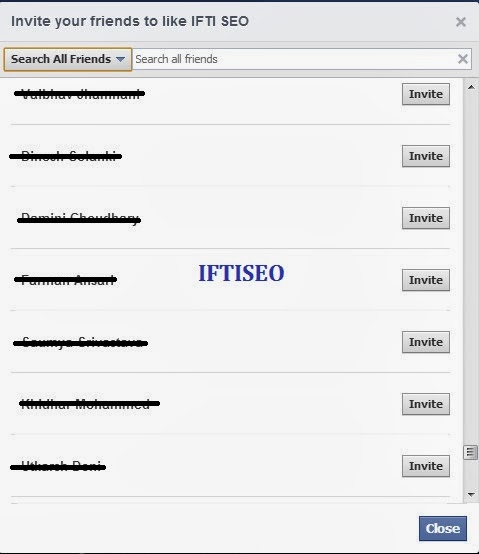
1. First of all open the page where you want to invite all your friends.  Open invite friends option,  a popup  opens. 


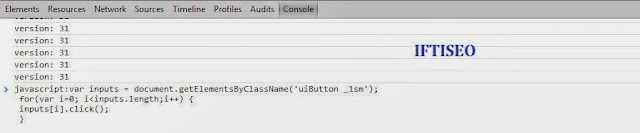
2. Now press F12 on your keyboard.  Chrome console window opens.


3. Now copy the code given below and paste it in the console window. Press enter. For page invites use the page code and for event invites use the event code given below

Code to Invite All Facebook Friends With A Single Click 2014


FOR PAGES
 var inputs = document.getElementsByClassName('uiButton _1sm'); for(var i=0; i<inputs.length;i++) { inputs[i].click(); }

FOR EVENT 
 javascript:elms=document.getElementsByName("checkableitems[]");for (i=0;i<elms.length;i++){if (elms[i].type="checkbox" )elms[i].click()}

NOTE: When you copy the above code, our link will also be copied so make sure to remove the link before executing the code in the console window.


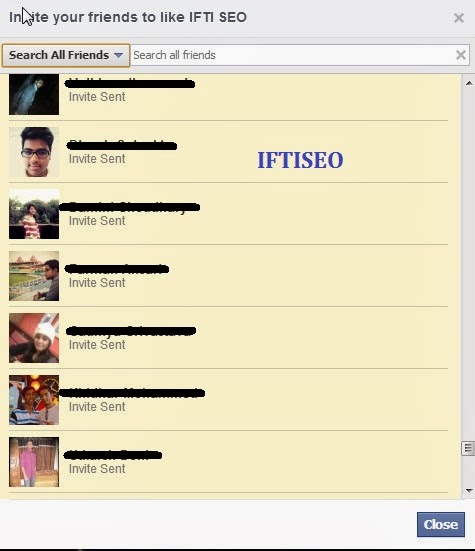
It will automatically invite all your friends to your page with just a single click. If you have a long list of friends then this may utilize more time and the page may look unresponsive for some seconds. You can use this code to invite all your friends to any page or event, and it does not come in spamming so don't worry, Facebook won't do anything with your account.


Wasn't  that easy.  I hope you liked it and utilize it to max extent. Share this with your friends and others. MORE FACEBOOK TRICKS Leave a comment below if the code doesn't work, we will change the script. 
continue reading Code to Invite All Facebook Friends With A Single Click 2014

How To Create A Facebook Page Without Name 2014

Its again a long time since I posted some common trick that can attract any person other than bloggers, so I have decided to come up with some such trick. 

How To Create A Facebook Page Without Name 2014
Create A Facebook Page Without Name 

You all have must have seen Facebook pages without name or Facebook profiles without name or sometimes even empty status and comments, So today I will be sharing all these tricks in this post. 


The best part of these pages or profiles is that everyone attracts towards it, I myself have liked many pages with no name. So lets unroll the method.

If you want to make a new page with no name or if you already have a page and would like to have no name on it then follow the steps :


Create A Facebook Page Without Name 2014

  • Create a Facebook Page with any name of your choice and category, I prefer Cause - Community category. You can use the Code now also but its better to use it later on. If you want to apply this trick on any of your existing page then simply follow the steps from hereby. 
  • After you have created the page all you have to do is open the page as admin and go to the Page settings.
  • Now all you have to do is rename the page. 
 iٌٌٌٌَُُftiseo   ٌٌٌٌَُُ
Create A Facebook Page Without Name 2014
This will come when you will paste it on your address bar.

Create A Facebook Page Without Name 2014
Use this code


  1. Just Copy the above code and first paste in your address bar. Remove "iftiseo" and copy the code again. Now you have the code to have a page without name. See the picture if you have any doubt.
    Create A Facebook Page Without Name 2014
    Paste the code here and save it
  •  Just Click on Change page name and paste the code youv'e copied earlier. (The one without IFTISEO) and click save. The box will look empty so don't worry, just click the save changes button.
  • Your page is now without any name. See Demo of one of my page that I created using this trick

Additional Tricks: 


1. Post an empty Status
Just copy the code given above and paste it in the status box and post it. You have just posted an empty status.

2. Facebook Profile with No Name
Use the same code as your name and you will be having a profile with no name. (I haven't tried it yet as we have only 3-5 chances of changing our Facebook name.) If you try it, do let us know about it in the comment sections.

3. Empty Comment
The same code works for empty comments as well. Just paste in the comment box and press enter.

I have explained this trick more very very briefly but still if you find any difficulties do let us know.
I hope you liked this post. Do share it with your friends, coz sharing is caring and it encourages us write more tips and tutorials.  


continue reading How To Create A Facebook Page Without Name 2014

How to Invite All Facebook Friends in New Page Layout

Hi there, after some amazing posts on blogging and Social media I'm back with a tutorial post. This post will allow you to invite all of your friends to any facebook page. You might be thinking that I posted the same thing before too?? Yes its posted before and the code is still the same but there's a change, A change in Facebook Page Layout. Facebook changed its page layout recently and thus due to this reason many people are not able to use the old technique. So in this post I will share the step by step guide on how to invite your friends to new facebook layout pages. 

How to Invite All Facebook Friends in New Page Layout

We all make facebook pages no matter on what topic it is. We make pages for our blog, website, brand, public figure or we even make pages for fun. So is making pages enough???

Obviously no!! You will have to get likes on your page so that your target audience can get your posts and updates. But wait!!! It is not that easy to get likes, so what I and most of us do is just invite all of our friends to LIKE our FACEBOOK Page. In this way our friends get a notification and there is a 50% chance that they will open up your page and like it.


But wait again!! Will you invite all your friends manually ?? I mean won't it take time ?? In hours ?? So to overcome this time problem we have come up with a simple code that will automatically invite all your friends to like your page with a singe click. 

Lets get started!!

Code to Invite All Facebook Friends in New Page Layout 2015

Just Follow the given steps: 

  • Firstly as usual, open the page for which you want to send invites to your friends. 
  • If you are the admin of the page you will see an option "BUILD  AUDIENCE", Click on it. 
Code to Invite All Facebook Friends in New Page Layout

  • Click on Invite Friends, a pop will open containing a list of all your facebook friends. Scroll the List as much as you can so that all of your friends get listed in it.
Code to Invite All Facebook Friends in New Page Layout

  • Now follow the same old method. Press F12 on your keyboard. Console window opens in case of Mozilla and Chrome. 
  • Copy the code given Below and hit the enter button. All of your friends will be invited automatically. 
How to Invite All Facebook Friends in New Page Layout
 var inputs = document.getElementsByClassName('uiButton _1sm'); for(var i=0; i<inputs.length;i++) { inputs[i].click(); } 

Code to Invite All Facebook Friends in New Page Layout  
  • This process can take upto 2 minutes depending upon the number of friends you have. Also note that our blog link gets copied along with the code, so before hitting the enter button make sure you remove our link.


Isn't it Simple!! Well I still posted as I got many comments on my previous post about how to make it work with the new layout and instead of updating the old one, I thought of just writing once again. I hope this will help you. Do share this tutorial with everyone who is still facing problems inviting their friends on their fb pages. 

continue reading How to Invite All Facebook Friends in New Page Layout

Complete Guide on Sponsored Reviews and Paid Posts

Hello Friends, Firstly it's good to be back writing posts on Tricks And Tips after a small break. So today I have come up with a very effective way which will help you get sponsored posts for your blog. It has been seen that most of the blogging/seo niche or even tech niche blogs are failing to make money through adsense or other ad networks, so the next thing that comes is Sponsored Reviews. 

Complete Guide on Paid Reviews and Sponsored Posts


But wait!!!
Most of us even after having good traffic stats, Alexa rank and even DA are unable to get advertisers for sponsored post. There are many more questions which will be answered in this post as I bring you the   Complete Guide on Paid Reviews and Sponsored Posts 

Note: By advertisers I mean the persons or the companies who pays us to write about thier product/service

And by the way this post is again based on what my readers wanted. I just did a small survey of what post they would like to have first at iftiSEO and this was their pick. Hurray for them!!!

What are Sponsored Posts/Reviews? 

Well, a Sponsored post is just an article or blog post published on your blog on a request of an advertiser for some fee. 

So it's basically like an advertiser comes to us asking for promoting his/her product by a blog post on our blog and pays us some amount. The amount may vary from 10$-500$ depending upon your website stats (Analytics, PR, DA, Alexa, etc.).

Many blogs make half of their monthly income by just posting sponsored content, so don't overlook this earning source.


When can we start getting advertisers for Sponsored Posts?

Hmm!! A very Common question. Well, yeah there are some criterias that the advertisers look for before approving any blog for a sponsored post.

Since the advertisers REALLY want to promote their products or services among thier audience they only look for blogs that:
  • Can satisfy their needs, 
  • Blogs that can help them build trust among the users
  • Blogs that can meet upto thier expectations, 
  • Blogs that can help them make sales, 
  • Blogs that can gain them subscribers, 
  • Blogs that can even bring them "TRAFFIC", 
  • Blogs that can expose them to different audiences and a lot more...
So, the advertisers look for many things before coming up with a proposal and if your blog satisfies any of their needs you will get approved by them. 

Wait a sec!! There's one more question that may come in your mind!!! Is it ??
I mentioned some of the key points that the advertisers look for in your blog, but how ?? What do they check?? What stats do they prefer to analyse??? 


What stats does the advertisers look for in your blog

The advertisers don't have your blog's analytics stats or traffic stats, so they always go for checking up some external sources and analyse it. Let me list some: 

Complete Guide on Paid Reviews and Sponsored Posts


  • Alexa Rank- This is probably the first and the most important thing an advertiser look before accepting your blog.
  • DA and PA- Domain authority and Page Authority by Moz also explains a lot about your website/blog and due to this very reason most of the advertisers check these stats. 
  • Social Stats- Big advertisers do focus on a blog's social following as they want their product review to get exposed everywhere on a blog network.
  • Competition- Advertisers also look for blogs that already have posted sponsored reviews/posts before as this thing gives them a sense of relief that the blog is already trusted by other advertisers. 
  • Ranking- I don't know whether advertisers check for this or not, but if I would be an advertiser I would definately check up a blogs ranking. By ranking I mean that I would just check up the blog's post and see where it got ranked (First page, second page or so on). 

I know that after reading till this point your mind still have some questions!! Ahh!! Let me try guessing them and answer them as well. So you might be thinking that what are the preferable stats a blog must have so that it can easily get approved by advertisers?


Recommended Stats to get Sponsored reviews

Well the answer to this cannot be straight and simple but I will answer it according to my experience and I guess it will help you a lot, since I do get a lot of requests by advertisers. 

  • Alexa Rank- Under 100k and you will start receiving requests or you can try sending requests. My first sponsored post on this blog came when my site was ranked 73000 in the world as per Alexa. Under 50k Alexa rank will never turn away the advertisers from your blog and such rank can even get you 100$ per post. My blog ranked at 23k brings me an average of 30-100$ per post depending upon many other things.
  • DA and PA- Get a DA above 15 and 50% of advertisers will be ready to accept your blog. PA in this case matters less. 
  • Social Stats- As mentioned above, this thing is just looked up by top advertisers who are willing to pay a good amount, so the social stats must be good enough to impress them. 
  • Competition- Try to get some low rate reviews initially (like 1-2 posts) since it will show your blog's trust to future advertisers. 
  • Ranking- Well if your blog follows the above 4 points, then it is obvious that your posts are getting indexed and ranked well on search engines. 

And now here comes again!! What??? I mean some more questions that might have come in your mind. So How to get advertisers once we fulfill all the above points ??

Once your blog gets some good stats, I mean once it fulfills the above points then it is obvious that your blog is creating a buzz in your niche and thus it will not be a difficult task for advertisers to reach your blog. So, once you get good stats you will automatically start getting advertisers mails in your inbox and thus you will be easily making like 20-100$+ per post.

But WHAT IF YOU DON'T GET ADVERTISERS FOR SPONSORED REVIEWS ??? Well yeah this thing is very common these days due to the increase in the number of blogs in your niche. Tech and Blogging/SEO niche bloggers face this thing a lot and believe me I have along got 40+ messages and mails asking on how to get sponsored reviews or posts for our blog.

No problem!! I have written this guide specially for you all who face this problem and thus I've got a solution to this thing. Excited?? Well I guess you are now liking the post as by now you have read 1000 words. So why not LIKE and SHARE this post on your network and help me spread the word. 

Hmm! Coming back to point now, I will be explaining you all 3 different & effective techniques of getting Advertisers for Sponsored Reviews or you can say PAID POSTS as others say. 
 If something can't reach you, then try to reach to that thing yourself.
True isn't it!! Well this is what you will be doing now inorder to get advertisers. We will reach to theam by ourself using some techniques. 


3 Most Effective Methods of Getting Sponsored Reviews on your Blog?

I've already given you the idea above on what we will be doing, So lets get started!!

  • Sponsored Posts Marketplace- 
One of the best ways to get Paid posts or Sponsored Review is by signing up on different Marketplaces and get your blog listed in it. Many advertisers still prefer to give Paid reviews through such sites as these marketplaces becomes a source of trust between the publisher and the advertiser. Moreover no cheating or scams can take place through it. 

Some top Sponsored Posts Marketplaces are: 

  • SponsoredReviews.com - One of the best and the most trusted site where you can easily get advertisers who can pay upto 200$ per post. I got 50$ once through this site by just adding a link of advertiser in any one of my post.  Join this site now. The only con of this site is that they keep 50% of what the advertisers pays. 
  • PostJoint - This is a small marketplace but still effective if your blog stands on top with the stats. Join PostJoint.
  • PayPerPost- One more site, which I just found out googling last week. Do give it a try, join now
  • BuySell.reviews- This is just a new site started by my friend and me, its still in the intial stages but once we get completed with everything you can earn upto 100$ per post using this site. Join it now

There are many more marketplaces that can be found up by googling. I've just listed out the one's which I used. Here is a list of 10 more such sites that pay you for writing posts on your blog.


  • Google Search 
Well you must be confused?? Hmm!! But wait, its true that we can use Google Search to get Paid posts on our blog. Let me explain you the whole process.

First of all you have to find new advertisers under your niche, this can be done very easily by just performing a Google Search. Let's for example search for a keyword "Email Marketing". 
3 Best Ways to get Sponsored Posts for your Blog


You can see that some ads of different companies/sites will be coming in google search results. Now all you need to do is target these companies. So just select some 3-5 NEW companies from the ads and open up their links, find their contact page/id and shoot them with a mail asking for a paid review of their service. 

My Friend Abid Omar have already explained the process completely on his blog with all the steps including "how to write the mail and send them". Check out his post: How to get sponsored reviews

There are 80% chances that these sites will pay you for a sponsored review on your blog since they are already investing in Google Adwords. 


  • Competitor Blog
Again a new thing!! You might be confused again?? Are you ?? Well its natural since these things are quite new. So what do I mean by this Competitor Blog? 

Note: By Competitor Blog, I just mean a better blog of someone else (maybe your friend) under your same niche.

Lets come to the point directly!! No matter what niche your blog is on, you will always be having some competitor blogs. So in this technique we will take advantage of their blog.

How to do this: 
  • First off, make a list of all top blogs under your niche in a notepad file.
  • Now open each blog one by one and check if that blog have posted any sponsored post  recently or not, if YES just note down the advertiser/company/product name that your competitor blog have reviewed. 
  • Repeat this for all of your competitor blogs and within just 10 minutes you will be having a list of around 15 different products. 
  • Now what you have to do is just open up these product sites, get their contact id and mail them asking for writing a paid review of their service. 
  • There are 80% chances that you will be approved. 

This method works like a charm as in this way we are directly going to contact only those advertisers who firstly have their product/service that fall under your niche and then secondly they have already paid other blogs for writing a review for their service. So it is obvious that they will pay you as well for writing one review. 


How much you Can Earn From A Single Review?

This heading ain't that much important in this post but I still prefer to make things look cool and I want you all to know the power of Paid reviews. 

Basically a good ranked website (as per ALEXA)  like iftiSEO.com can get upto 200$ per post, but to be frank I get an average of 60$ per post which is a good amount for a single review.

If you just write 4 sponsored reviews per month which is really an easy task then you can easily make 50*4=200$ minimum per month only through sponsored posts. Isn't it good ?? Many top blogs with such ranks even get 200$ per post and they are easily making 500+$ per month only through sponsored reviews and paid posts. So with this, you might have understood the power of it. 


Some Important Points to Remember before Getting Started

So, I have explained you everything in the guide and I guess you understood and liked it so far, but wait!! Before you get started I want you to keep some points in mind. 

  • Only accept Paid posts and reviews that comes under your blog category/niche to maintain your readership and subscribers.
  • Don't compromise with regular posts, continue with regular posting of fresh quailty articles.
  • Don't write fake reviews. 
  • Don't give excess do-follow links. 
  • Don't promote illegal stuffs/ sites/ products even though you get huge offers for it.


Final Verdict

Hmm!! So at this point I don't have questions in my mind regarding anything and I guess you are clear with everything as well. Are you ??? 

By the way you have reached like 2000 words and I guess I've explained a lot in these words. Why not share it or like it or tweet it or even stumble it. That's how a blog's social network works. If you still have any query regarding any method or anything just comment below and I will answer your questions. 

continue reading Complete Guide on Sponsored Reviews and Paid Posts